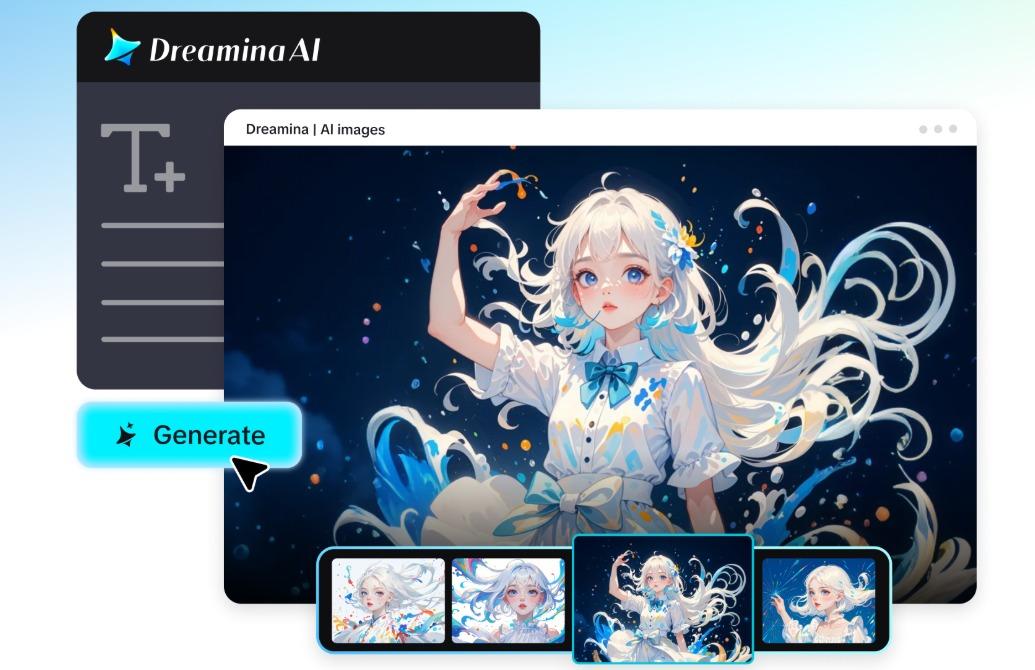
While still images do a great job of depicting a moment, weather-related movement can help make it feel more real. Wind, rain, and snow add atmosphere, no need for another photoshoot. With text prompts and the video-generation controls, Dreamina AI can turn reference images into dynamic videos. Ideal for seasonal campaigns, movie posters, music visuals, travel videos, and social media posts. However, the generated weather is a creative interpretation and not evidence of the actual environmental conditions.
Decide Which Weather Effect Best Fits the Scene
Select the weather that enhances the composition, lighting, and mood of your photograph. Leaves, grass, loose clothing, tree branches, and hair are good choices for wind. You can use rain to add atmosphere to reflective roads, windows, city streets, and illuminated surfaces. Snow adds season to landscape shots, rooftops, outdoor portraits, and forests. These scenes can be animated using descriptive prompts with Dreamina AI’s AI video generator workflow. Use one main effect to avoid creating too much visual clutter. Next, add subtle supporting details – only if they enhance the desired mood. Don’t overpower the weather if it’s going to distract from the subject and background.
Prepare Images for Believable Weather Animation
Choose pictures that show surfaces and objects that are clearly moving in the environment. A background contrast enhances the ability to differentiate the falling snow, raindrops, and moving foliage. Generation can be difficult when the branches are crowded, when there is low light noise, when the architecture is complicated, and when the subjects overlap. Keep the original horizon, buildings, roads, trees, and placement of subjects intact as much as possible. During the generation process, Dreamina AI might add unexpected precipitation, change reflections, or tweak facial and clothing features. Keep an untouched copy of the source image for comparison. A good reference photo provides more visual information to the model to help review inconsistencies.
Match Weather Motion to the Scene
Movement needs to be appropriate to the setting of the photo for realistic weather. Leaves or fabric should be slightly blown about by a gentle breeze, but rigid objects should not be bent out of shape. If dramatic conditions are present in the scene, strong movement can be created by heavy wind. A fine rain should set in and create a rainy atmosphere without obscuring the main subject. A variation in apparent size, distance, and movement of snowflakes creates a more dimensional look. Wet reflections should be coherent with visible lights and surrounding surfaces. While Dreamina AI is capable of understanding these instructions, the trajectories of the generated particles might not be consistent. Pay attention to movement, especially around buildings, faces, and reflective surfaces.
Steps to Add Wind, Rain, and Snow to Still Shots With AI Video Generator
Step 1: Upload your photo and describe the weather effect
- Sign up or log in to Dreamina, then upload the still shot you want to animate.
- Select the “Create” tab from the left menu and click the “AI video” option.
- Write a detailed text prompt explaining the weather and mood you want to see. Add video elements, theme, and concept, such as falling snow, heavy rain, or wind-swept trees.
Step 2: Set your model and options, then generate
- Choose a model from the options placed at the bottom of the dialogue box.
- Models include Dreamina Seedance 2.5, Dreamina Seedance 2.0, Dreamina Seedance 2.0 Fast, Dreamina Seedance 2.0 Mini, Dreamina Seedance 1.0, and more.
- Click “Omni reference” to give the AI several reference images for accurate weather results.
- Pick a custom frame ratio and sharpness from the “Aspect ratio” and “Resolution” tabs.
- Then click the “Generate” tab to start the weather animation.
Step 3: Fine-tune the weather and download the video
- Unhappy with the storm? Use “Edit prompt” or “Regenerate” to polish the result.
- You can also change the generated video through the “Edit video” option.
- Use “Edit segment” to adjust only one part, like the wind gusts.
- Prolong the weather with “Extend video”, or improve its clarity with “Creative upscale”.
- Dreamina gives you complete freedom to edit the video the way you prefer.
- Lastly, click the “Download” tab at the top right to save the clip.
Write Weather Prompts That Describe Direction, Density, and Intensity
Good prompts are specific and describe an actual movement instead of using terms to refer to the atmosphere. Start with the current scene, and add the weather and its intensity. In the case of wind, determine which foreground leaves, clothes, or far-off trees are supposed to be moving. When describing rain, use fine droplets or heavy rain, and set the desired mood. When it comes to snow, mention light drift or heavy snowfall, but don’t lose the subject. Do not mix oppositional directions, like strong wind and no movement of the leaves. Make a few changes to one variable and determine which changes help to improve the result. Dreamina AI follows creative instructions, but its actual physical actions are unpredictable.
Use Weather to Create Different Visual Moods
The weather can affect the audience’s interpretation of a scene. A gentle flow can help to create a sense of calm, freedom, or a serene outdoor scene. Precipitation can produce reflective urban imagery, dramatic tension, or cinematic night-time pictures. Snow can indicate warmth in winter, isolation, seasonal celebration, or quiet storytelling. Match movement created with the colors, contrasts, and lights of the photo. These moods can be created using Dreamina AI for promotional videos, artwork, and short-form content. When audio tools are available, suitable sound effects (rain, wind, etc.) can help to reinforce immersion. But generated sound cannot always be synced perfectly with all the visible movement.
Check Physical Consistency and Responsible Use
Check the whole clip for continuity before going public with it. See if leaves, clothing, and precipitation have reasonable directions of movement. Look for edges around persons, vehicles, windows, branches, and building boundaries. Look for double snowflakes, rain repetition, variations in brightness, and wavering reflections. Effects created by AI can be convincing without being true to the physics of the atmosphere. Do not use synthetic weather to suggest emergencies, current conditions or environmental evidence falsely. Check permissions for images before posting and ensure platform disclosure requirements are adhered to. Watch the video at regular speed and look for distracting mistakes that might not be obvious in single frames.
Conclusion
Moving visuals can be created from still photography with the help of wind, rain, and snow, making the images atmospheric. Dreamina AI offers features to delve into these effects, such as reference images, descriptive prompts, and editing controls. Start with one weather effect, keep all the necessary weather information in the scene, and see how the movement is throughout the clip. Include supporting atmosphere only if it enhances the composition. Through careful refinement, more coherent results are obtained, and creative effects are separated from the documentation of the weather.